Connect other clients
Claude and ChatGPT are the clients Civic IQ supports and documents. Any other client that speaks the Model Context Protocol can connect too, and this page covers that case along with API keys for scripts.
The server address is the same everywhere:
https://beta.mcp.civiciq.com/mcpWhat the server expects
| Transport | Streamable HTTP. Server-Sent Events is not supported. |
| Authentication | OAuth 2.1, handled by the client. |
If a client only offers SSE, it cannot connect. Choose Streamable HTTP where a client asks which transport to use.
Cursor
Add Civic IQ as a custom MCP server in Cursor's settings, using the URL above. Cursor opens a Civic IQ sign-in the first time it calls the server.
API keys for headless callers
Signing in through a browser does not work for a script, a scheduled job or a backend service. For those, use a Civic IQ API key.
Create a key
In Civic IQ, go to Settings > API Keys, click + Create API Key, give it a name and description, set the scope to MCP Access and choose an expiry, then click Create Key. Copy the key somewhere secure, as it is shown once.
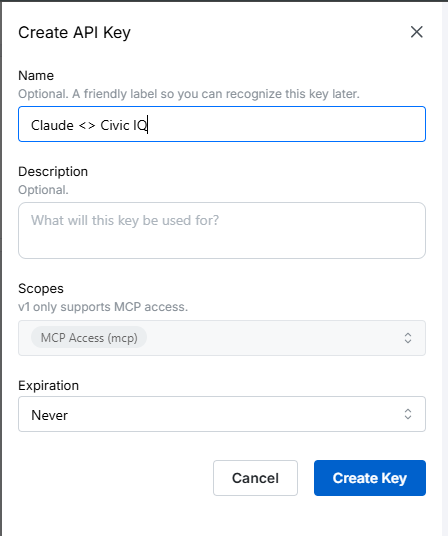
Keep the key private. It grants access to your Civic IQ account.
Send the key
A key can be supplied three ways:
Authorization: Bearer ak_live_...X-API-Key: ak_live_...https://beta.mcp.civiciq.com/mcp/ak_live_...Prefer a header. A key placed in the URL path tends to end up in logs, browser history and shared screenshots, because it travels as part of the address rather than as a credential.
Use API keys only where a browser sign-in is impossible. In Claude, ChatGPT and Cursor, signing in is both simpler and safer, since nothing durable is written down.
Setup should only take a few minutes. If you have any questions along the way, just reach out at [email protected] and we'll help you get connected.